
GoAgile.ai is designed to help Agile teams move fast — especially during backlog grooming and sprint planning. One of the most powerful features for teams working with spreadsheets or exported backlog data is the ability to import issues from a CSV file, instantly organize them, enhance them with AI, and finally export everything into Jira with a single click.
In this guide, you will learn how to load a CSV, configure imports, refine stories with AI, and sync them with your Jira project.
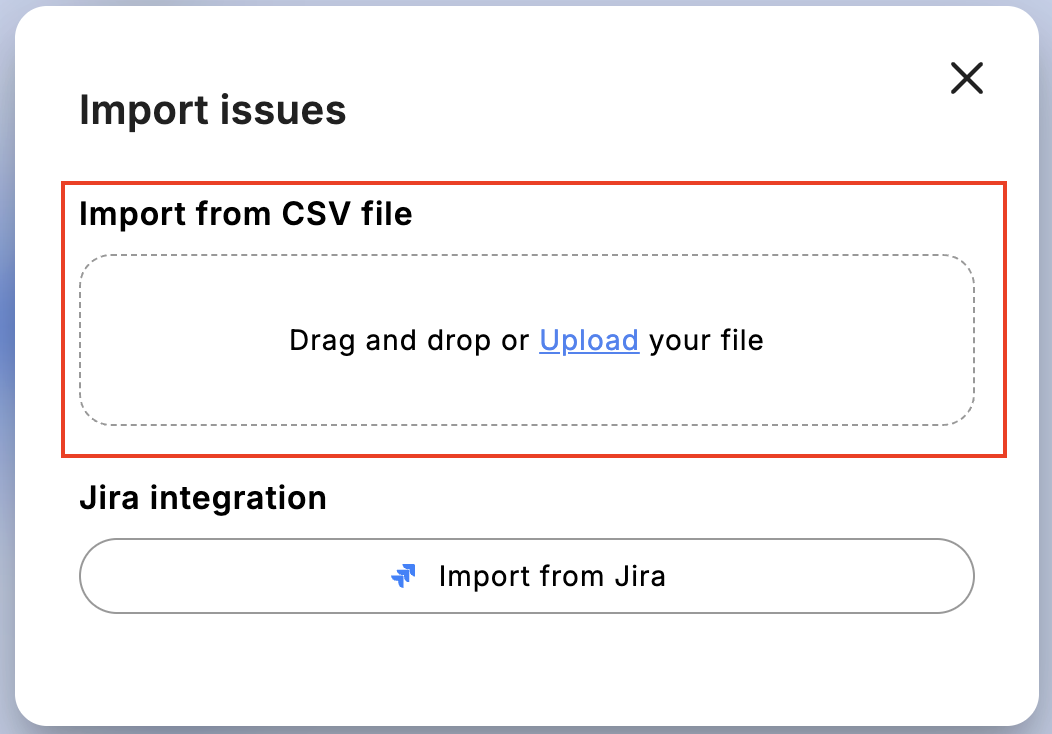
Step 1 — Load your CSV file
From the GoAgile dashboard, click “Import CSV”. You will see the Configurator window where you can upload your file. The platform supports standard CSV formats exported from Jira, Google Sheets, Excel, or any backlog tool.
Once uploaded, GoAgile will show a preview of your file so you can map your columns correctly.
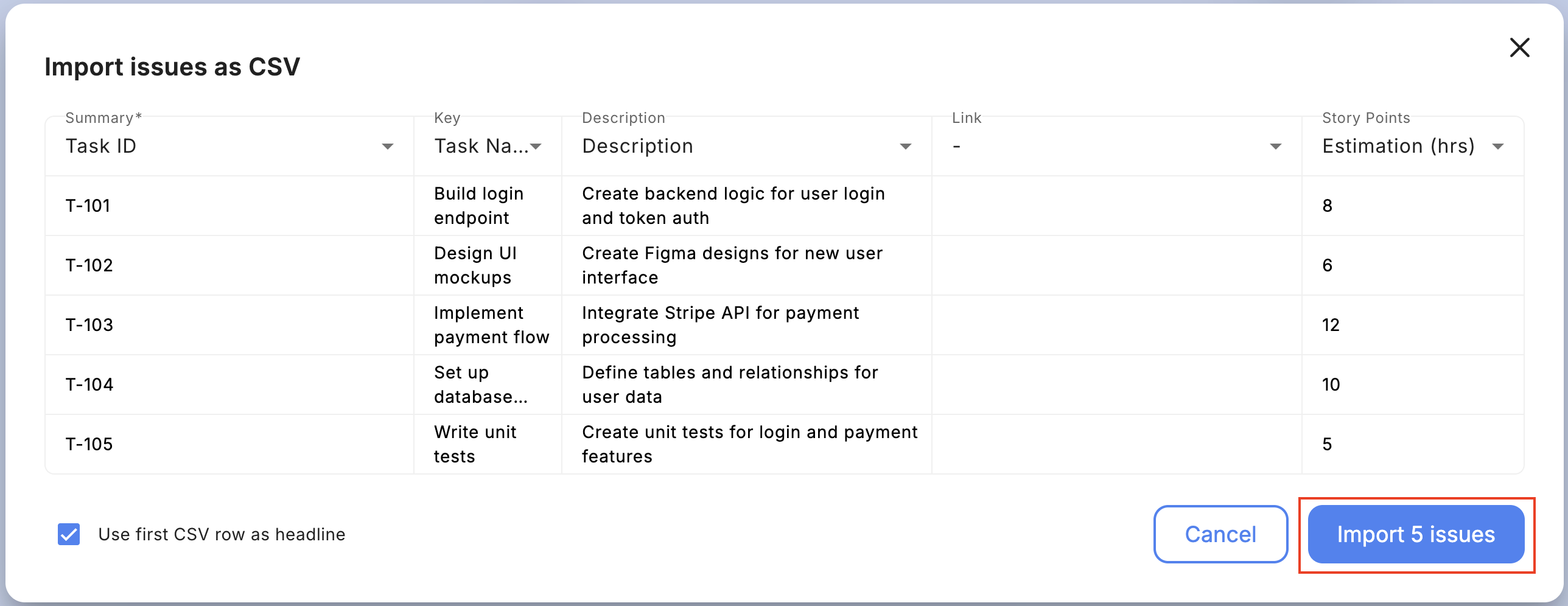
Step 2 — Configure your columns using the Import Configurator
The Configurator lets you choose which CSV column corresponds to which story field — such as title, description, acceptance criteria, priority, or tags.
Simply match your CSV headers to GoAgile fields using dropdown selectors. When everything looks correct, click “Import”.
Free vs Paid Plans
- Free Plan → you can import up to 10 issues at a time.
- Pro Plan → unlimited CSV import size for larger backlogs or team-wide migration.
Step 3 — View imported issues in the story rail
After import, your stories appear in the rail on the right side of the screen. They are instantly ready for review, editing, and estimation.
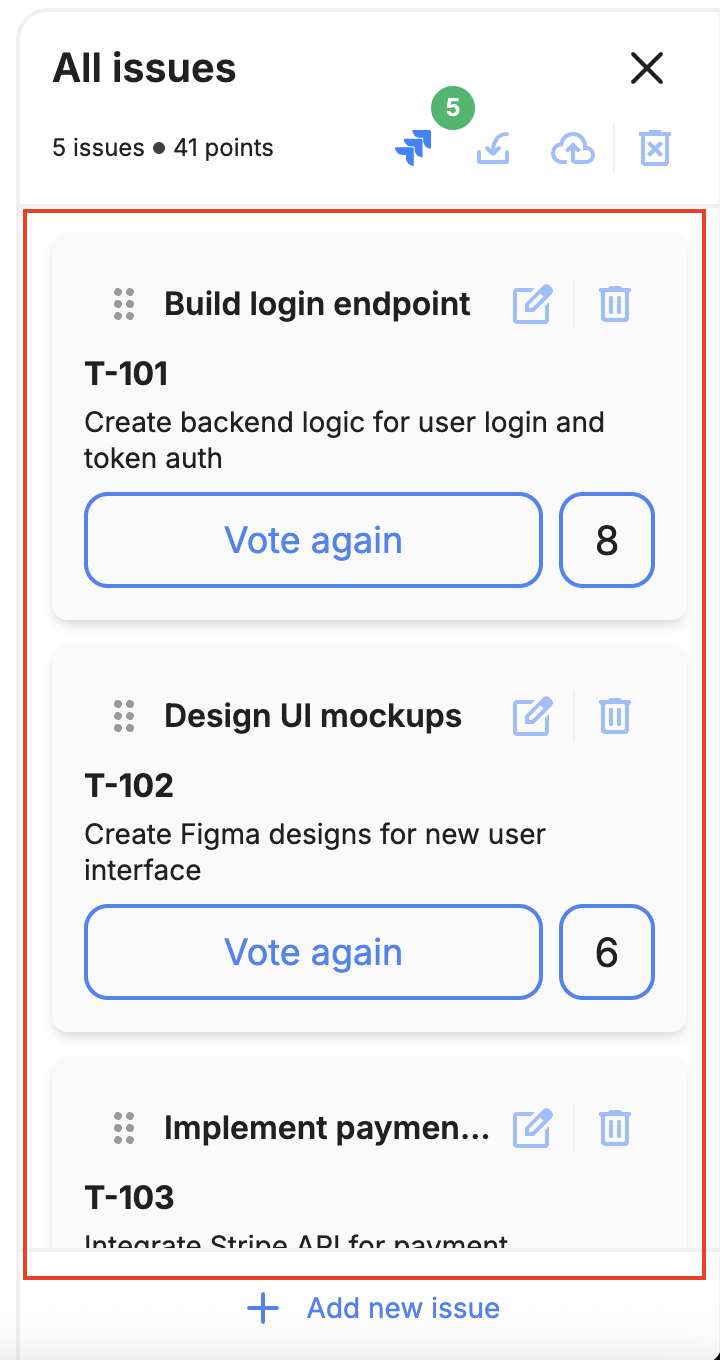
You can reorder stories, attach metadata, assign tags, or archive any items you do not want to estimate.
Step 4 — Use AI to polish or generate full user stories
One of the advantages of GoAgile.ai is the ability to enhance imported CSV rows with a single click using built-in AI.
You can:
- Expand a title into a full user story
- Auto-generate acceptance criteria
- Rewrite unclear or vague descriptions
- Standardize story format across your team
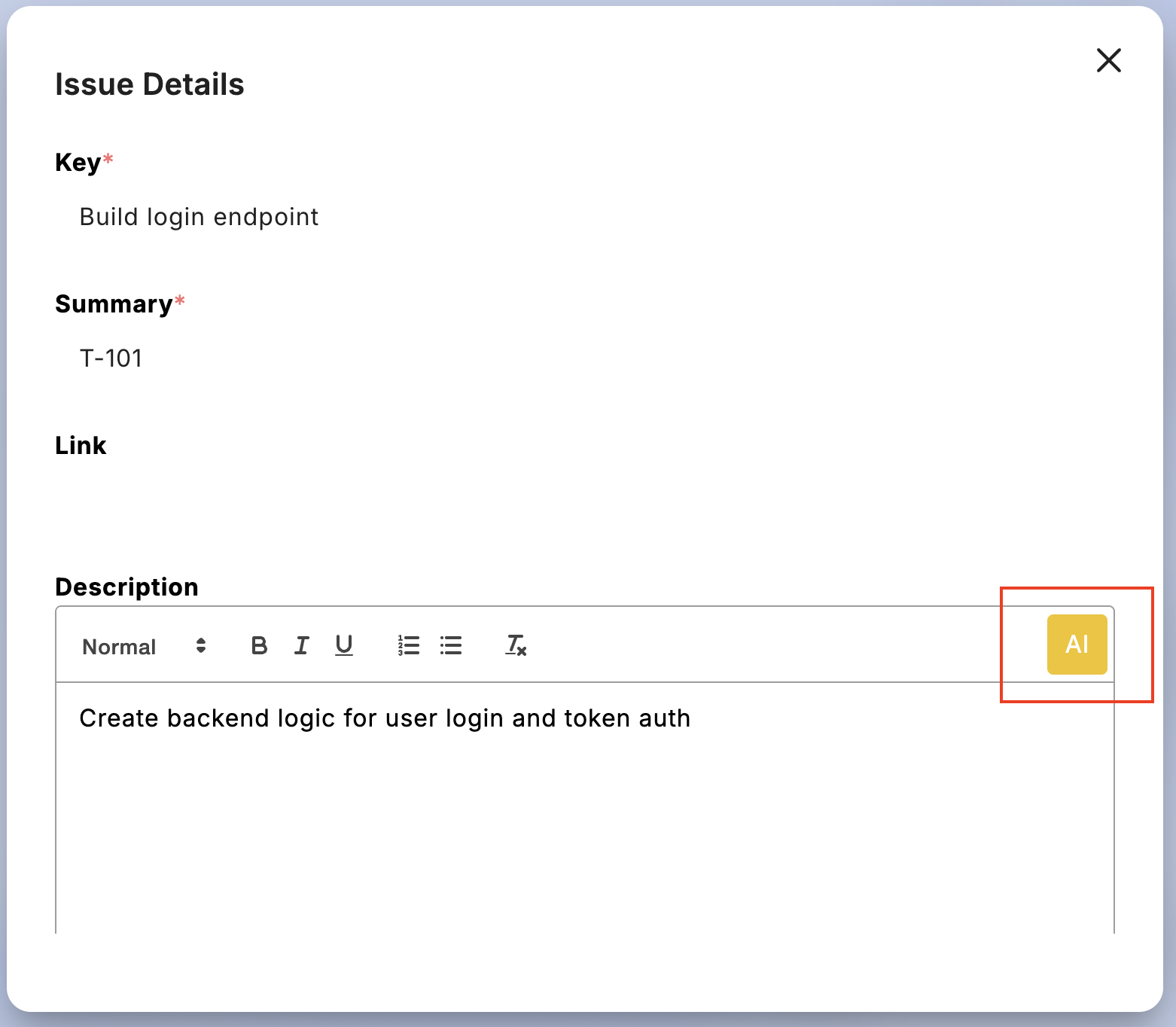
This is especially useful when you import a CSV with raw or unrefined items — AI helps you transform them into clean, ready-to-estimate Agile stories.
Step 5 — Invite the team and start your estimation session
Once stories are ready, invite your team using the session link. No installation, no setup.
Your teammates join instantly through Google, GitHub, or email login.
Start estimation, discuss, vote, reveal cards, and have fun — just like any Planning Poker session in GoAgile.ai.
Step 6 — Sync your stories directly to Jira
When your session is complete, click “Sync with Jira” to export all processed items into your Jira project.
GoAgile allows you to choose:
- Jira project
- Issue type (Story, Task, Bug, etc.)
- Whether to sync all issues or only the ones you estimated
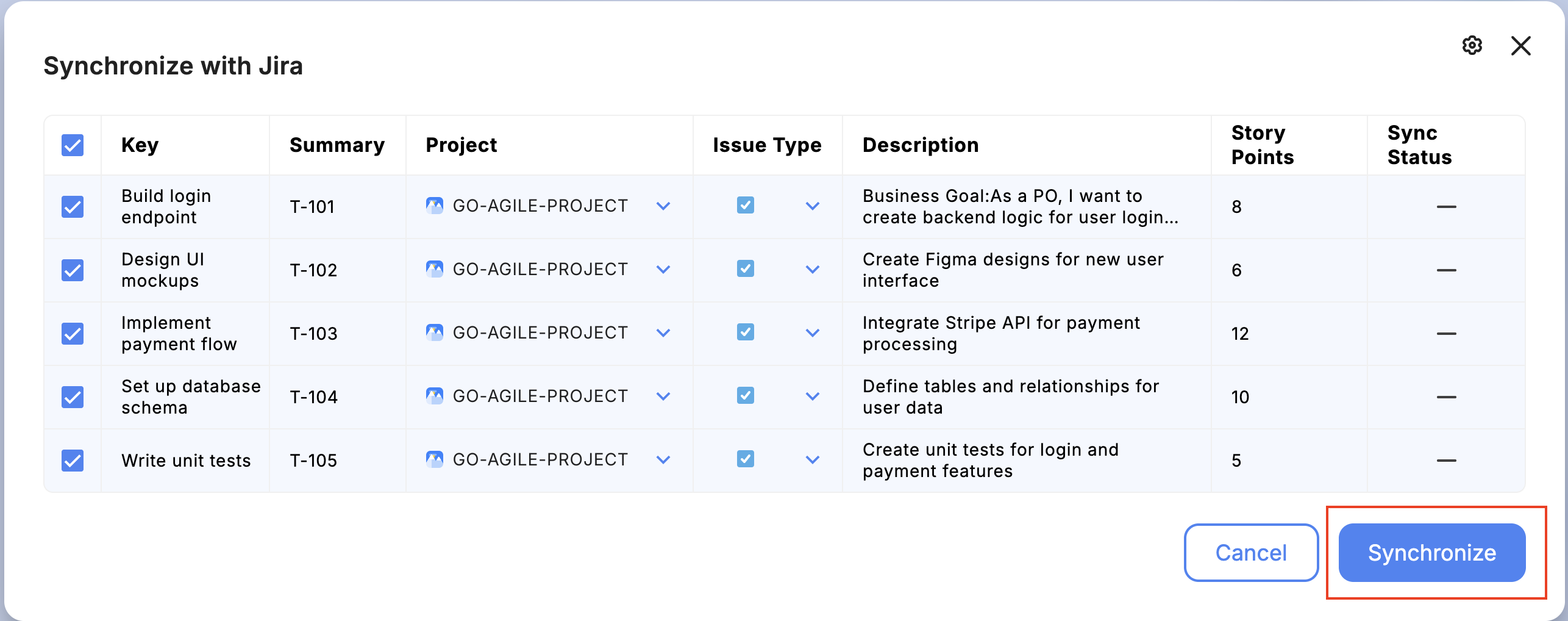
GoAgile automatically creates Jira issues with correct story points, titles, descriptions, AC, and metadata — no manual copy-pasting, no mistakes.
Final Thoughts
Importing CSV files and exporting to Jira gives teams a seamless workflow from rough backlog to synchronized Jira board. Combined with AI story generation and integrated Planning Poker, GoAgile.ai becomes a complete tool for backlog refinement and sprint planning.
Upload → refine → estimate → sync — all in one smooth flow.
Your team will love how simple and fast it becomes.